
Ever wondered why colors on your computer screen appear slightly different when you print your design? It all comes down to knowing the difference between these two popular color models: CMYK and RGB.
Both CMYK and RGB mix colors to create a wide variety of color possibilities. However, one is more suitable for digital and onscreen designs, while the other is better for printed materials.
What is CMYK?
CMYK is a color model that uses different combinations of Cyan, Magenta, Yellow, and Black. “K” is used to represent black to avoid confusion with the “B” in RGB, which stands for Red, Green, and Blue.
CMYK is suitable for printed materials because it delivers a more accurate color representation. It uses a subtractive color system, a phenomenon that creates colors by removing or absorbing certain wavelengths of light from white light.
When you look at printed materials, the colors you see are from the lights that are reflected by the inks into your eyes. By contrast, the lights that are absorbed by the inks are the ones you don’t see.
What is RGB?
While CMYK “subtracts” lights to show specific colors, RGB “adds” and combines light from the primary colors of red, green, and blue, creating an array of shades. Each color channel has an intensity ranging from zero (pitch black) to 255 (the highest level of brightness). When all three colors are combined at their maximum intensity, the result is white. When they are combined at their lowest intensity, the final color is black.
RGB is suitable for digital displays, such as computer monitors, projectors, LED screens, and smartphones. Any gadget that uses light to display images utilizes this color model.
Why is CMYK the Preferred Color Model for Printing?
Here are the reasons why CYMK is a better color model for printed materials than RGB.
- CMYK requires fewer inks than RGB to produce the same range of colors.
- It doesn’t rely on light-emitting devices to show accurate colors.
- This color model ensures that colors remain consistent across various printed materials.
- Most commercial printers use CMYK.
When to Use CMYK
As far as color models go, CMYK is the gold standard for designs that will be physically printed. These are some of the most common examples:
- Billboards
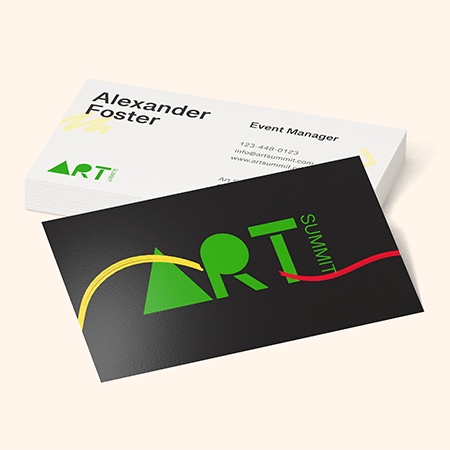
- Business cards
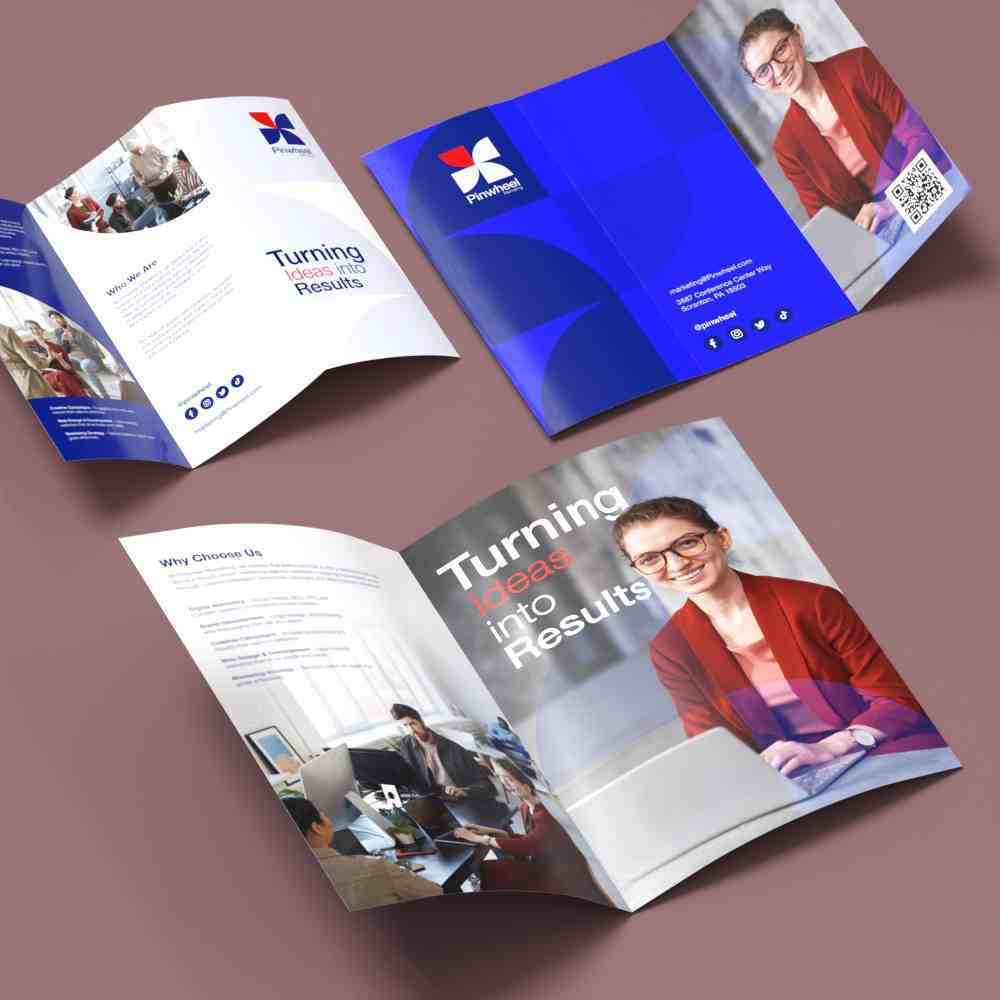
- Brochures
- Car magnets
- Flyers
- Mugs, pens, and other promotional products
- Postcards
- Posters
- Restaurant menus
- Stationery
- Stickers and labels
- Product packaging
- T-shirts
Pro Tip: If you see any print projects in your pipeline, start the design process using CMYK to avoid converting later on.
What are the Best File Formats for CMYK?
Using the appropriate file formats for your design projects is one way to ensure color accuracy and high-quality prints. Below is a list of suitable formats for CMYK files.
- AI. As Adobe Illustrator’s native format, AI is ideal for complex vector-based artwork, as it preserves the design elements and offers excellent editing flexibility.
- EPS. This highly scalable format is ideal for illustrations and designs that require resizing and reformatting.
- PDF. This versatile file format is suitable for complex designs because it can handle both vector and raster graphics. It also preserves color profiles, leading to accurate reproduction.
- TIFF. This lossless format preserves image quality without compression, making it an ideal choice for high-resolution images and detailed graphics.
What are the Best File Formats for CMYK?
Here’s a step-by-step guide on how to check the color mode of your file using Photoshop, InDesign, and Illustrator, which are the most popular image editing software.
Adobe Photoshop
Navigate to Image > Mode in the menu bar. You can also find the color mode in parentheses after the document title at the top of the Photoshop window.
Adobe InDesign
Navigate to File > Document Setup and look at the Color Mode section.
Adobe Illustrator
Navigate to File > Document Color Mode. You can also find this information in the Documents tab.
How to Convert RGB to CMYK
Follow this guide if you have to switch an image from RGB to CYMK using any of the popular editing software mentioned above. You may notice some color changes in your design when converting from RGB to CMYK. If this happens, you will need to adjust the colors to ensure they match the original.
Adobe Photoshop
- Click Edit.
- Convert to Profile.
- Choose CMYK in the Destination Space.
- Click Flatten Image to preserve its new appearance.
Adobe InDesign
- Navigate to File.
- Select Adobe PDF Presets.
- Click Press Quality.
- Save your file.
- Select Output in the pop-up box.
- Choose CMYK from the Destination dropdown menu.
Adobe Illustrator
- Click Edit.
- Select Edit Colors.
- Choose your desired color space.
If you want the colors to be printed exactly as you want them to appear, always convert your artwork from RGB to CMYK before sending your files to your printer. Better yet, start the design process using CMYK to avoid the need for conversion later on.
If you’re still not sure, it’s fine! NextDayFlyers will review your artwork and even offer free digital design proofs upon request. This way, you can examine how your design looks on flyers, brochures, banners, stickers, or any other printed materials. We’ll wait for your approval before printing your order.